

TL;DR
- The Endpoint Protector Client resides on the employee endpoint.
- It can be configured in different modes depending on your requirements and the experience you want your users to have.
- By default, the Client is set to “Normal.”
- Additional modes include “Stealth,” “Hidden,” “Silent,” and “Panic.”
- Understanding how these configurations will alter the employee experience before enabling is important.
Like many organizations, you might have unique requirements and want to adjust your employee’s Endpoint Protector experience based on their role or function. With this in mind, Endpoint Protector allows for customization of the Endpoint Protector Client to accommodate your unique needs!
In this Academy Guide, we’ll cover the Client Settings available and review how to implement them.
Where to find Client Settings
There are several settings that relate directly to the Endpoint Protector Client. These settings establish the client’s behavior and can be configured for specific entity mapping. Specific entity mappings include Global, Groups, Computers, and Users.
Login to the Endpoint Protector dashboard and select Global Settings within the Device Control module.
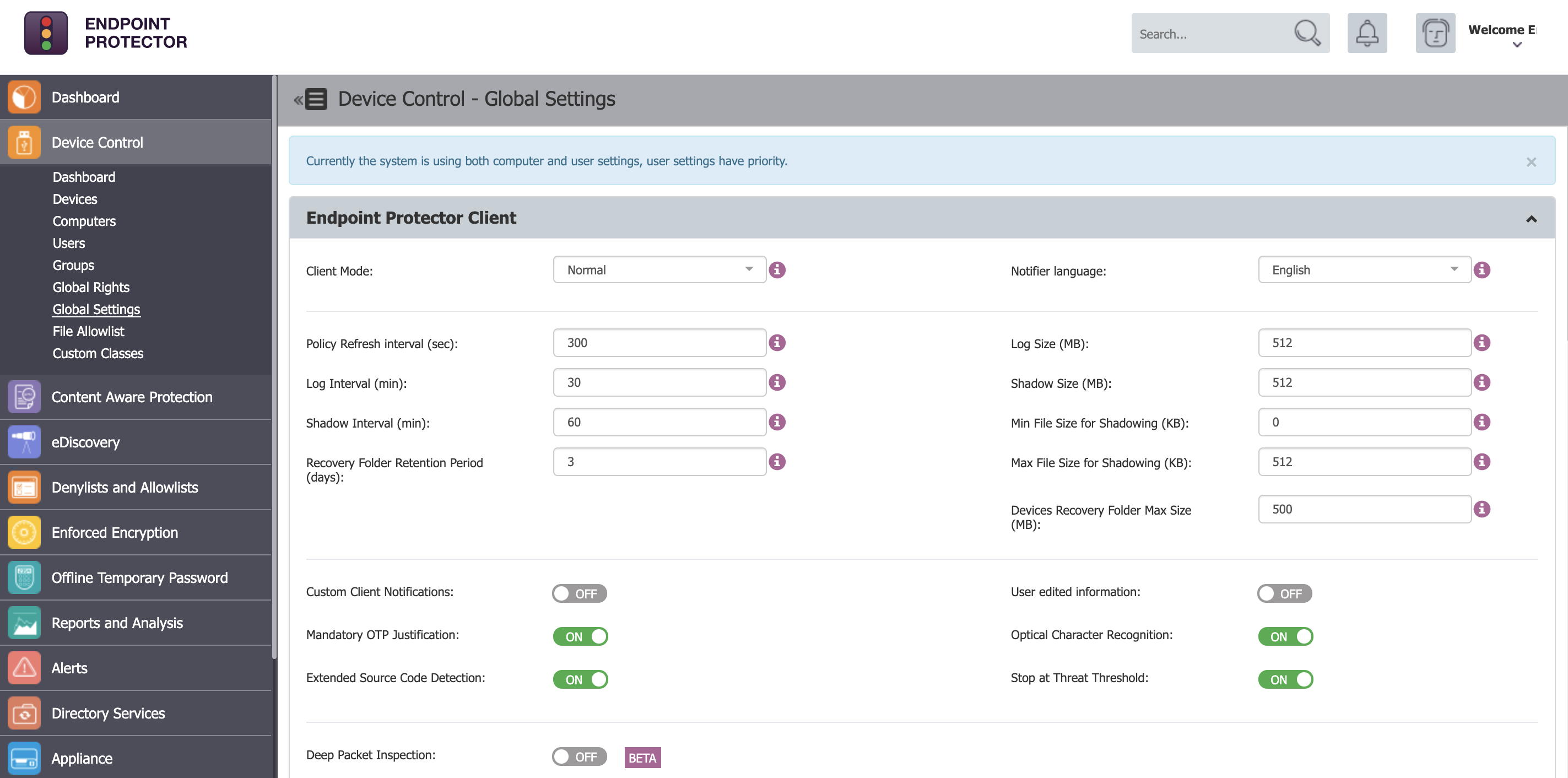
Click the image for full resolution.
Understand Client Modes
The Endpoint Protector Client offers several modes that define its behavior on an employee’s system. There are six modes to choose from, and they can be changed at any given time. Below is a quick summary of each mode available for configuration by an Endpoint Protector Administrator.
Normal
The default deployment mode for the Endpoint Protector Agent. We recommend that you do not change from Normal mode to another mode without fully knowing what the other modes imply. If the Normal mode behavior does not suit your needs, Hidden or Silent modes are usually the best alternatives to consider.
Transparent
This mode is useful to block all devices, but users remain unaware of any restrictions or presence of the Endpoint Protector Client and its activity.
- No system tray icon is displayed
- No system tray notifications are shown
- Everything is blocked, regardless if authorized or not
- Administrator receives alerts for all activities
Stealth
This mode is useful to monitor all users and computers, but users remain unaware of any restrictions or presence of the Endpoint Protector Client and its activity. Since everything is configured to allow, there will be no disruptions in the users’ day-to-day activities.
- No system tray icon is displayed
- No system tray notifications are shown
- Everything is allowed, regardless if authorized or not
- File shadowing and file tracing are enabled to see and monitor all user activity
- Administrator receives alerts for all activities
Panic
This mode can be utilized under extreme situations, such as when a user has malicious intent or detected rogue activity. With these special circumstances, the Administrator may toggle to this configuration in order to block all devices. It is recommended to exercise extreme caution if using this mode.
- System tray icon is displayed
- System tray notifications are shown
- Everything is blocked, regardless if authorized or not
- File shadowing and file tracing are enabled to see and monitor all user activity
- Administrator receives alerts when computers go in and out of Panic Mode
Hidden Icon
This mode is very similar to the Normal mode option. The difference is that the Endpoint Protector Client is not visible to the user.
- No system tray icon is displayed
- No system tray notifications are shown
- All configured rights and settings are applied as per their configuration
Silent
This mode is very similar to the Normal mode option. The difference is that the pop-up notifications are not visible to the user.
- System tray icon is displayed
- No system tray notifications are shown
- All configured rights and settings are applied as per their configuration
Additional Client Variables
Notifier Language
The Endpoint Protector Client Notifier language.
Policy Refresh Interval (sec)
The time interval at which the Endpoint Protector Client checks in with the Endpoint Protector Server and updates with the latest settings, rights, and policies.
Notifications Pop-up
The Administrator has the option to select between traditional (system tray) and pop-up notifications. This setting relates directly to an end user’s experience once blocking is set to take place within policy.
Need help?
If you’d like further information and guidance on configuring the Endpoint Protector Client, please reach out to your Customer Success Manager, or get in touch with our support team here https://support.endpointprotector.com/hc/en-us/requests/new.
Download our free ebook on
Data Loss Prevention Best Practices
Helping IT Managers, IT Administrators and data security staff understand the concept and purpose of DLP and how to easily implement it.