

TL;DR
- Large volumes of data can overwhelm Administrators when running reports.
- The Limit Reporting feature makes reports more digestible by restricting reported items to the threshold applied in the corresponding policy.
- Further analysis can be made after enabling File Shadowing. This maintains a copy of the transmitted file, allowing Administrators to inspect the content.
For Administrators who need to audit their environment, fine-tune their policies, and stay on top of their DLP strategy, the large volumes of data being processed and transmitted can quickly become overwhelming. This is where Endpoint Protector’s Limit Reporting feature steps in; reducing the reporting burden while not leaving gaps in overall auditability or data loss prevention.
The Limit Reporting feature, as the name suggests, limits the amount of entries displayed in your Audit Reports while providing a function for deeper analysis through Endpoint Protector’s File Shadowing feature.
Once Limit Reporting is configured, your reports will adhere to the threshold limit that has been applied to the corresponding policy. For example, if you have a Content Aware Protection policy threshold configured at ‘1’ you will see one entry in your Content Aware Protection Report, even if that file contains five hundred entries of sensitive data. If you have the threshold configured at ‘10’ then only the first ten entries identified within the file will be displayed.
If further investigation is needed (perhaps a look at the actual content of a transmitted file), File Shadowing offers the ability to look at a copy of the original file transmitted. This may be useful in determining more specifics around why it was necessary for a user to attempt to send the file object.
Enabling Limit Reporting
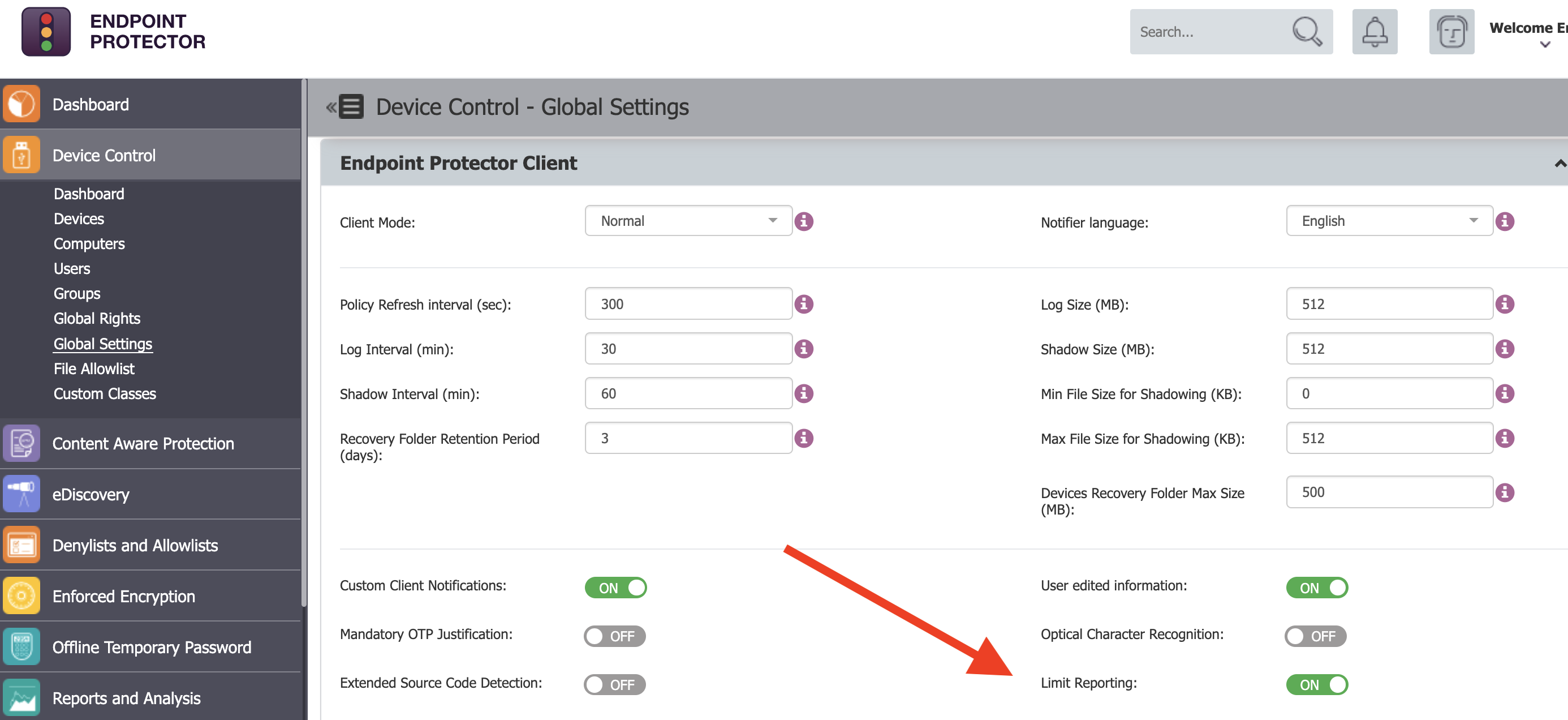
To enable ‘Limit Reporting’, login to the Endpoint Protector Management Console and scroll down on the left Navigation bar to find Device Control > Global Settings. Select this, and on the right-hand side find the toggle for Limit Reporting – – turn this to ON. After doing so, be sure to scroll down and click the Save button.
Click the image for full resolution.
Set a policy threshold
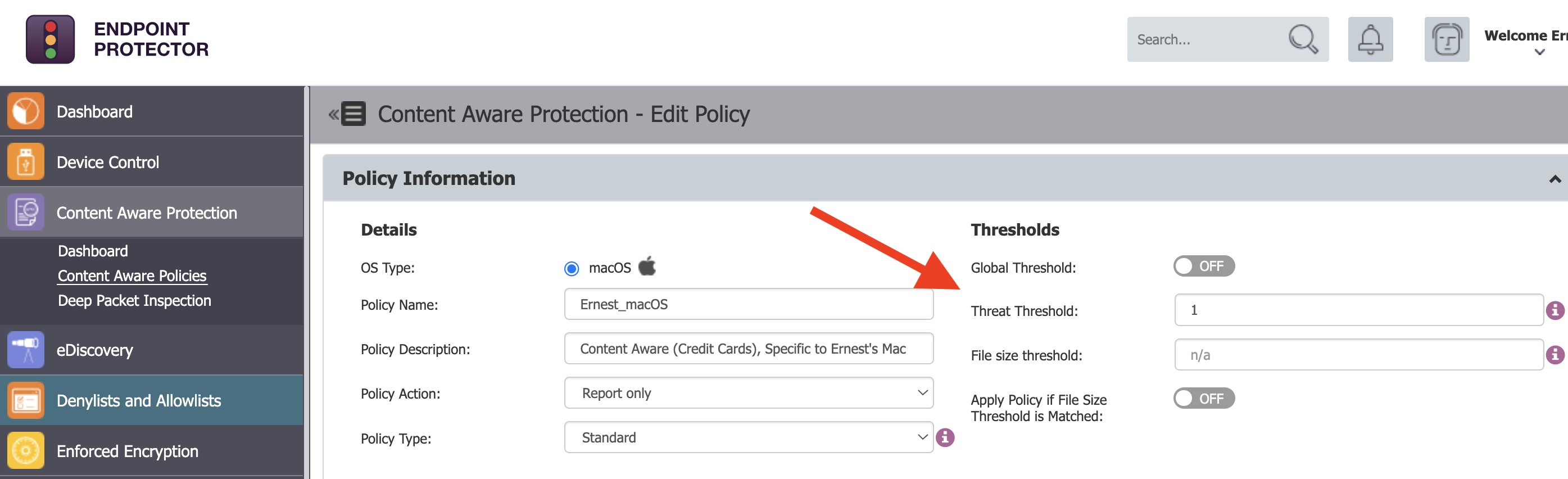
Enabling the Limit Reporting function allows for the amount of entries defined within your policy thresholds to align with the amount of entries seen in your Audit Reporting. To review your thresholds, locate your policies for Content Aware Protection and review the Thresholds section.
Click the image for full resolution.
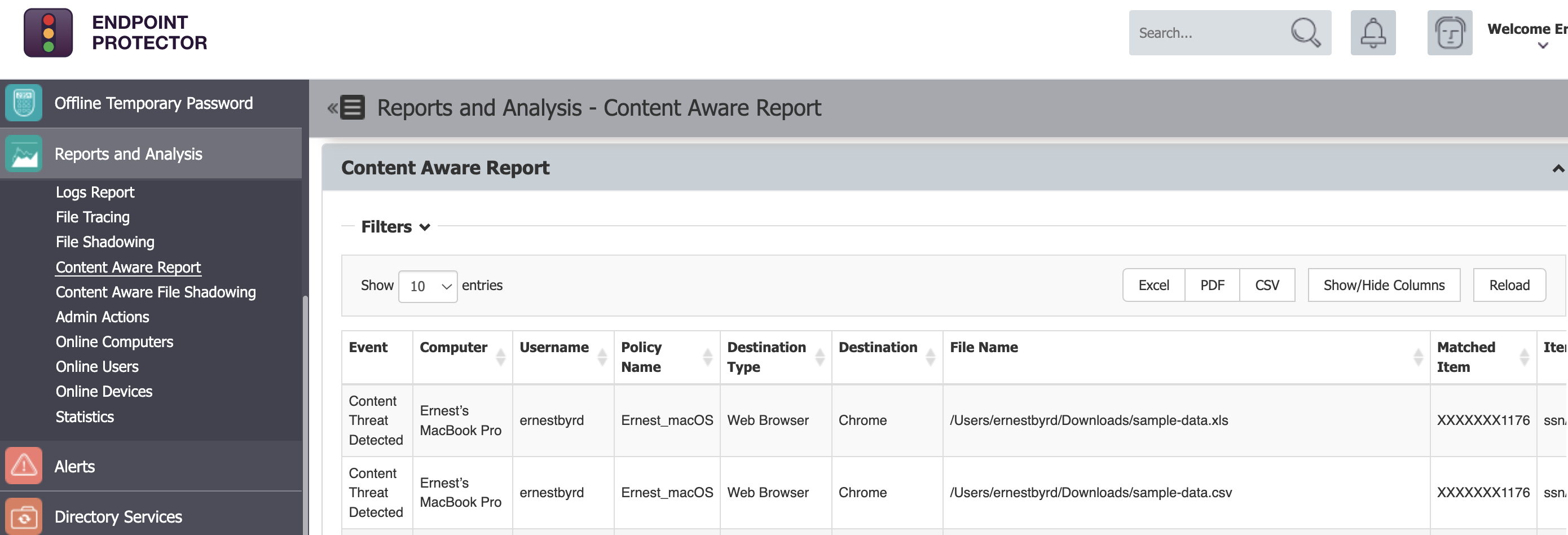
After these updates have been performed, you will see an overall reduction in the number of entries within the Content Aware Protection report – making it lighter weight and easier to use for auditing purposes.
Below is a sample set of entries after applying a threshold of ‘1’ within a Content Aware policy. Each of these transmitted files contained approximately fifty entries which would have been deemed sensitive enough to trigger a policy violation. However, with Limit Reporting enabled, the reporting dashboard offers a simpler, condensed view, while still offering enough information to consider further investigation and a potential blocking strategy for this endpoint.
Click the image for full resolution.
Enable File Shadowing
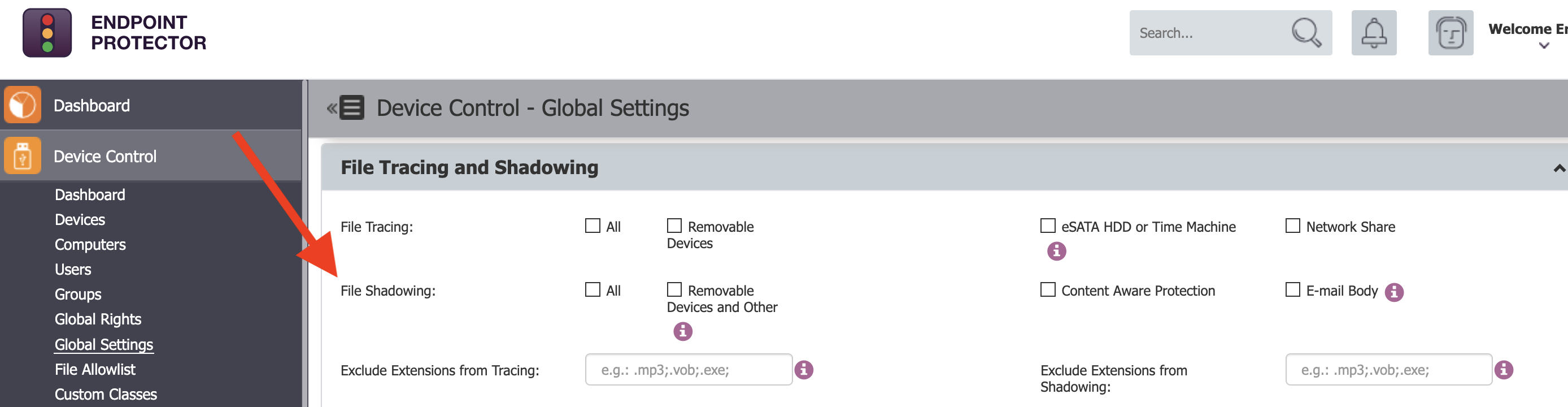
If there is a need to enable ‘File Shadowing’, this is found further down in the Global Settings section of Device Control. File Shadowing presents a copy of the file(s) being transmitted. Please note that File Shadowing may require an increase in the storage space used by your Endpoint Protector Server. Having a strategy of log rotation or general management should be considered when enabling the File Shadowing feature.
Click the image for full resolution.
Need help?
If you’d like further information and guidance on the Limit Reporting feature or File Shadowing, please reach out to your Customer Success Manager or get in touch with our support team here.
Download our free ebook on
Data Loss Prevention Best Practices
Helping IT Managers, IT Administrators and data security staff understand the concept and purpose of DLP and how to easily implement it.