TL;DR
- The User Remediation feature allows employees to bypass a policy restriction. Rather than following an ‘ask for permission’ model, this feature allows for an ‘ask for forgiveness’ approach.
- User Remediation reduces your admin team’s time responding to tickets and requests to bypass a policy restriction.
- All events related to this feature will be logged, even if the user cancels the action, and admins can see it in the Reports and Analysis section.
- The User Remediation pop-up can be customized and branded.
- The feature is available on the Content Aware Protection module and is a Premium feature.
User Remediation is an optional feature that can be applied to your Content Aware Protection policies. It is designed to allow for a bypass when an employee attempts to transmit sensitive information.
Instead of having a block message displayed to that employee (which would require further Administrative intervention), ‘User Remediation’ gives the ability for employees to transmit information that may be necessary for their role, function, or duty. Rather than following an ‘ask for permission’ model, this feature allows for an ‘ask for forgiveness’ approach. While this bypass can allow for more timely content delivery, justification details can be requested, which are then transmitted to an Administrator so that further scrutiny and due diligence may occur.
Here’s a simple scenario:
Helen is from the accounts payable department, and she needs to print the boarding pass for her business trip. The pass is blocked due to her passport number, and it’s late Friday evening. She submits a user remediation request with the business trip justification and is able to print the boarding pass without intervention by the Administrator.
This Academy Guide walks through the basic set-up and employee experience.
Note – User Remediation is a premium feature. As such, this section is only available if Premium licenses are present on the Endpoint Protector Server.
Implementing User Remediation
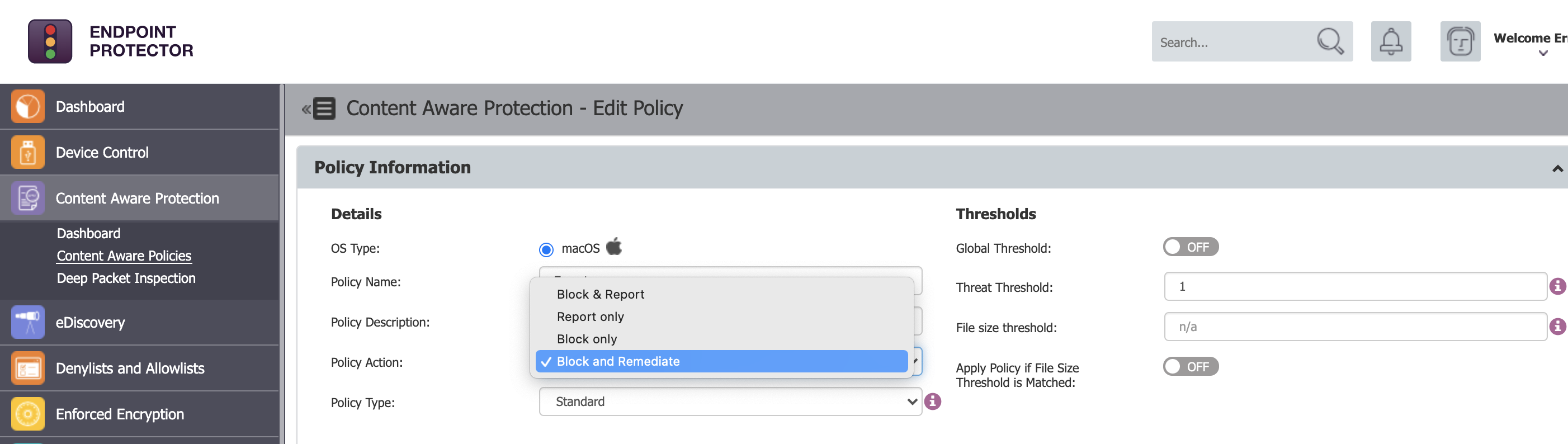
You can enable User Remediation on any existing Content Aware Protection policy. To turn on User Remediation, navigate to the Content Aware Protection Policy(s) where the restriction is intended and choose to edit the ‘Policy Action:’ field. By selecting ‘Block and Remediate,’ the User Remediation feature will be enabled the next time the endpoint connects to the Endpoint Protector Server.
Click the image for full resolution.
User Remediation variables
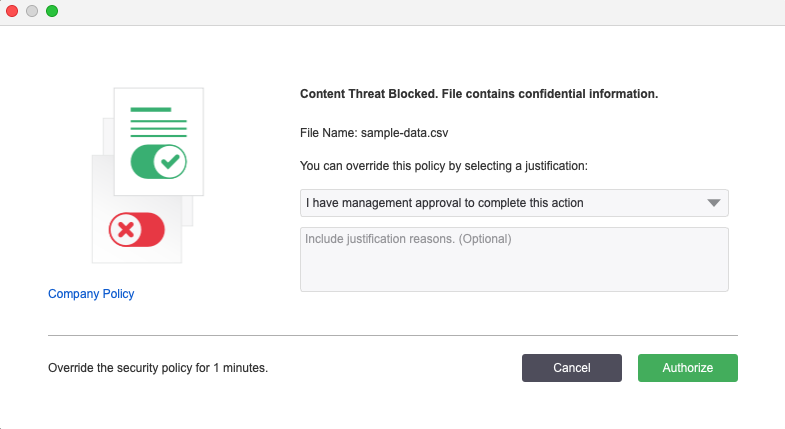
Under System Parameters > ‘User Remediation,’ variables for this feature can be seen within the Endpoint Protector dashboard. Variables include, but are not limited to: adding a custom logo and URL to the pop-up that appears on the employee’s screen and the time interval allowed for each user remediation request (for example, if a user attempts to send out a document containing PII via an email attachment, an authorized action would allow a defined amount of minutes for that item to be sent via email after the action is selected).
See the following image for a sample ‘User Remediation’ Pop-up message.
Click the image for full resolution.
User Remediation Reporting
Logs (or details) of an end user’s response to a User Remediation intervention can be found in the Endpoint Protector dashboard under Reports and Analysis > ‘Content Aware Report.’ If User Remediation has been utilized to authorize a bypass and transmit of sensitive content, the Justification field will provide any user-submitted messaging.
User Remediation vs. Offline Offline Temporary Password
There may be some scenarios where User Remediation is not a viable option.
In such cases, “Offline Temporary Passwords” (OTP) offers another means to bypassing a policy.
The Offline Temporary Password can be generated for the below entities:
- Device (a specific device)
- Computer and User (all devices)
- Computer and User (all file transfers)
A password is linked to a time period and is unique for a certain device and computer. The time intervals available are 15 minutes, 30 minutes, 1 hour, 2 hours, 4 hours, 8 hours, 1 day, 2 days, 5 days, 14 days, and 30 days or Custom. This means the same password cannot be used for different devices or computers. It also cannot be used twice (except in the case of Universal Offline Temporary Passwords).
Generating Offline Temporary Passwords can only be carried out by Administrators with “Super Administrator” permissions. When generating an Offline Temporary Password for a Device, the administrator can either introduce the Device Code communicated by the user or search the Endpoint Protector database for an existing device.
Once an OTP has been generated, the Administrator will need to send it to the user.
Need help?
If you’d like further information and guidance on User Remediation options (or to enable it on your account), please reach out to your Customer Success Manager or get in touch with our support team here https://support.endpointprotector.com/hc/en-us/requests/new.
Download our free ebook on
Data Loss Prevention Best Practices
Helping IT Managers, IT Administrators and data security staff understand the concept and purpose of DLP and how to easily implement it.